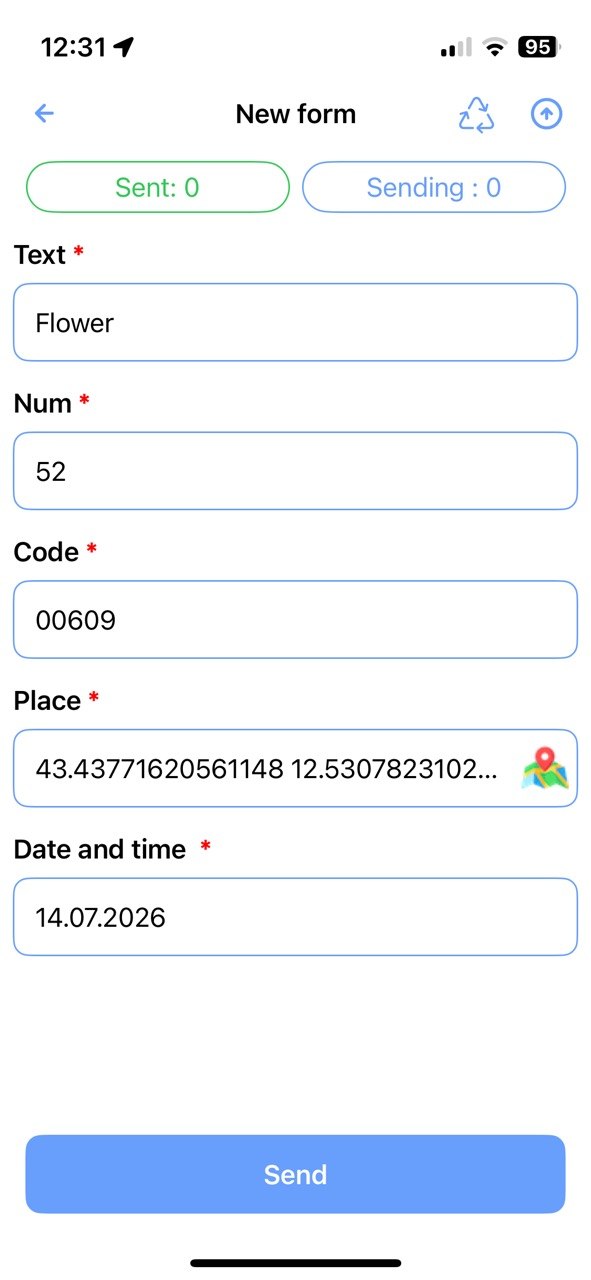
Spreadsheet Data Entry helps you enter data into spreadsheets quickly from your phone: create forms, fill in fields, scan QR codes and barcodes, add photos, and save records to Google Sheets or locally.
When a student pays for a lesson, buys a package, or reschedules a class, I want to record the amount, number of lessons, and new date immediately so that payments, balances, and agreements are not forgotten.
Spreadsheet Data Entry vs Alternative Ways to Solve This
Alternative
Limitations
Why SDE is better
Payment and rescheduling notebook
Remaining lessons must be counted manually, and reschedules and agreements are easy to forget
SDE lets you record payment, package type, lesson quantity, and the new date in one entry without re-entering data; it uses number fields, dates, transaction lists, and one shared spreadsheet.
Direct entry in Excel or Google Sheets from a phone
On a small screen it is difficult to find the correct row and column, and formulas, previous records, or the spreadsheet structure can be changed accidentally
SDE separates data entry from spreadsheet editing: the user sees only the required fields, and values are placed automatically in the columns configured for the “Track Payments, Packages, and Rescheduled Lessons” use case.
Calendar plus a separate payments spreadsheet
Data is split between services, making it difficult to connect payment, completed lessons, and reschedules
SDE collects all required values in one guided form and immediately creates a structured row for the “Track Payments, Packages, and Rescheduled Lessons” use case.
CRM for a training center or tutor
Automates schedules and payments but requires configuration and may be unnecessary for a small practice
SDE can be launched without a full implementation: create a form, connect Google Sheets, and use only the fields required for the “Track Payments, Packages, and Rescheduled Lessons” use case.
How to Set Up SDE with Google Sheets
1
Install the app and sign in with Google
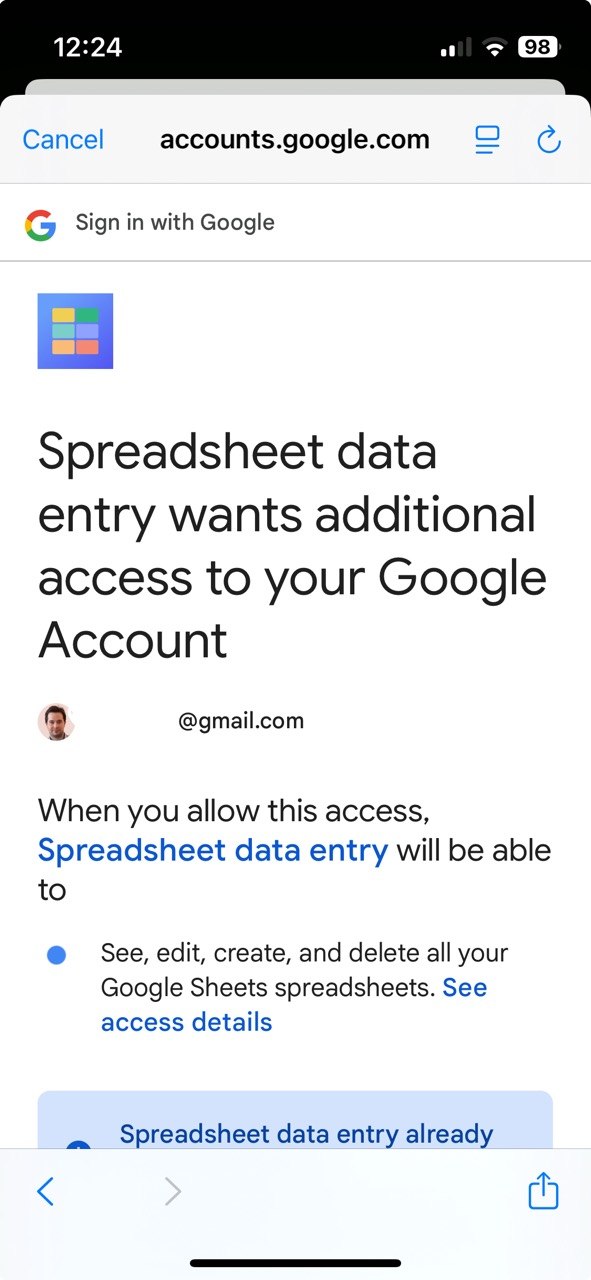
Download SDE, sign in with Google, and grant access to your Google account so the app can work with your Google Sheets.
Install SDE on your smartphone.
Open the app.
Sign in or create an account with Google.
Open Settings.
Connect the Google account you want to use with Google Sheets.
Confirm access.
The app is ready to work with Google Sheets.
2
Create a spreadsheet and connect a form
Prepare a Google Sheet and create a new SDE form that will send data to the required worksheet.
Create a Google Sheet.
Add a worksheet for collecting data.
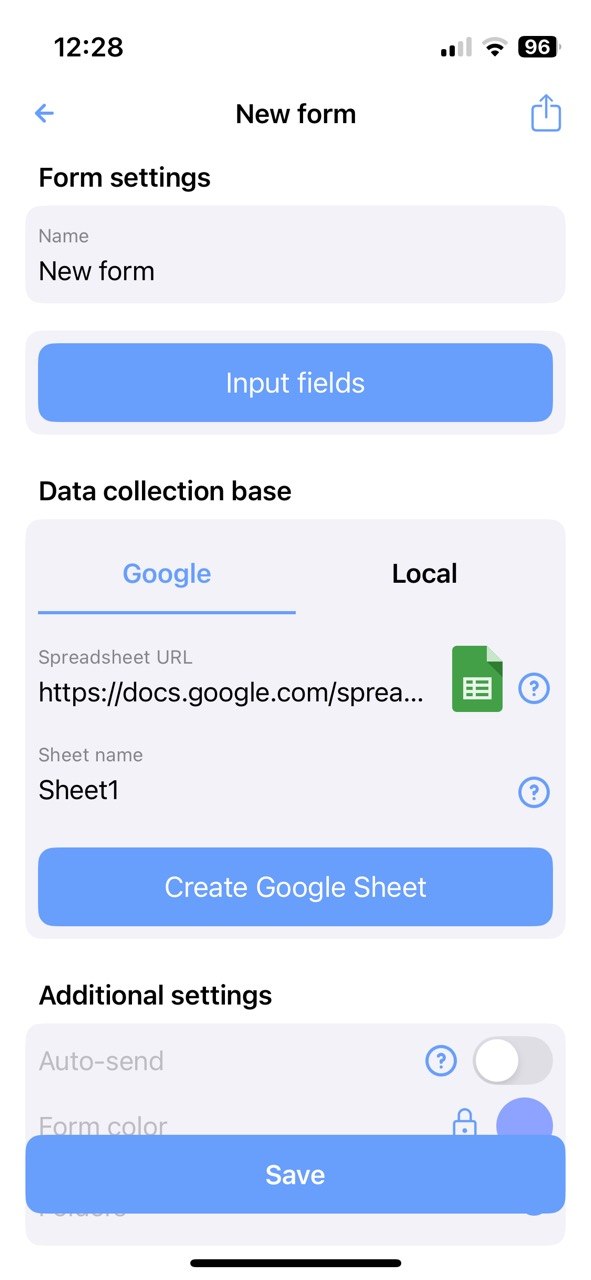
Tap “Create form” in SDE.
Enter the form name.
Select Google Sheets as the storage destination.
Choose the required spreadsheet and worksheet with the assistant, or paste the link manually.
The form is connected to Google Sheets and ready for field configuration.
3
Add form fields and map them to spreadsheet columns
Configure the fields users will complete on their phones and specify which Google Sheets column should store each value.
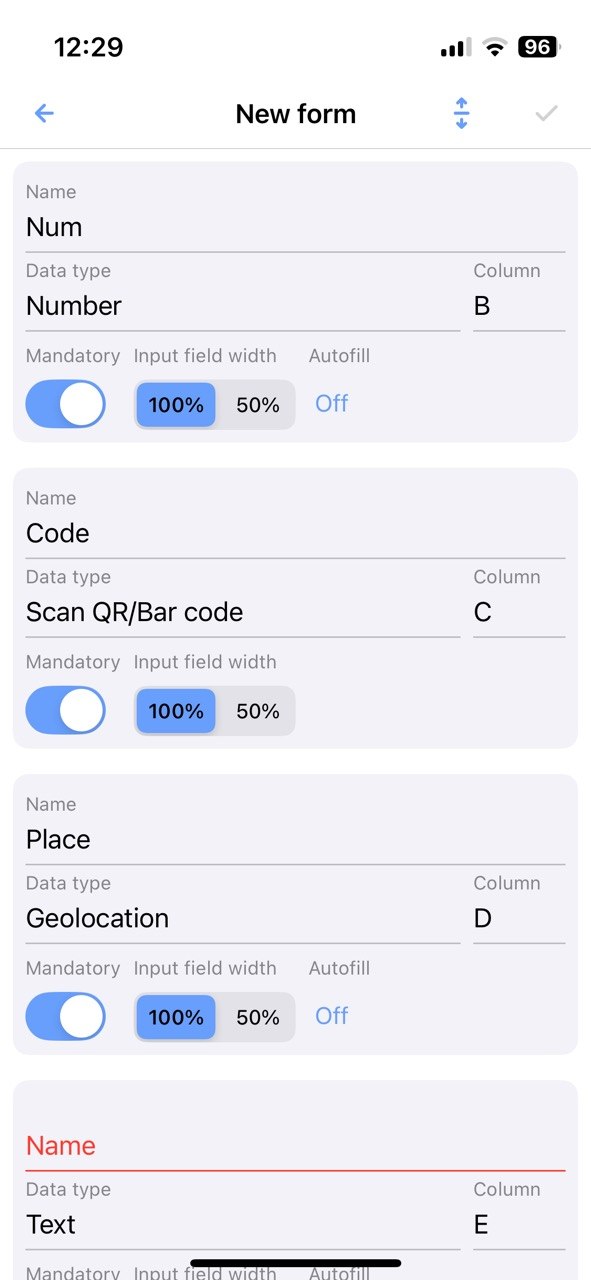
Open the form field editor.
Add the required fields, such as date, barcode, item name, quantity, and location.
Select the appropriate data type for every field.
Specify the destination column for each field: A, B, C, and so on.
Mark required fields when needed.
Save the form.
The form is fully configured and ready for data entry.
4
Open the form and send data to the spreadsheet
Open the completed form, fill it in on your phone, and send the first record. The data will appear in Google Sheets immediately.
Open the saved form.
Complete the fields or scan a code.
Tap “Submit”.
Wait for the successful submission confirmation.
Open Google Sheets and check the new data row.
The data was submitted successfully and appeared in the spreadsheet.
Template
Ready-to-use Google Sheets template: Payments and Packages
Copy the ready-made spreadsheet to your Google Drive, connect it to an SDE form, and start collecting data from your phone. The template already includes the required columns, formulas (where needed), filters, and a sample row.